Character sheets for consistent generations
Want consistent characters in your Seedance 2 videos? Same face, same clothes, same style, in every scene.
AI film-makers create a character reference sheets first, shoot the scene after.
Here’s how to do create and use them with Seedance 2, step by step 👇
What is a character reference sheet?
AI video platforms may change your character a little every time you generate. A character reference sheet fixes this.
Character reference sheet shows your character from every side front, 3/4, side, and back. It also shows different faces (happy, worried, surprised), poses, and details like hair, clothes, and accessories. With all this, Seedance 2 knows exactly who to animate.
Think of it as your character’s “master file.” Make it once, and use it again and again.
So the simple rule is: picture first, video second.
Step 1: Create the character sheet
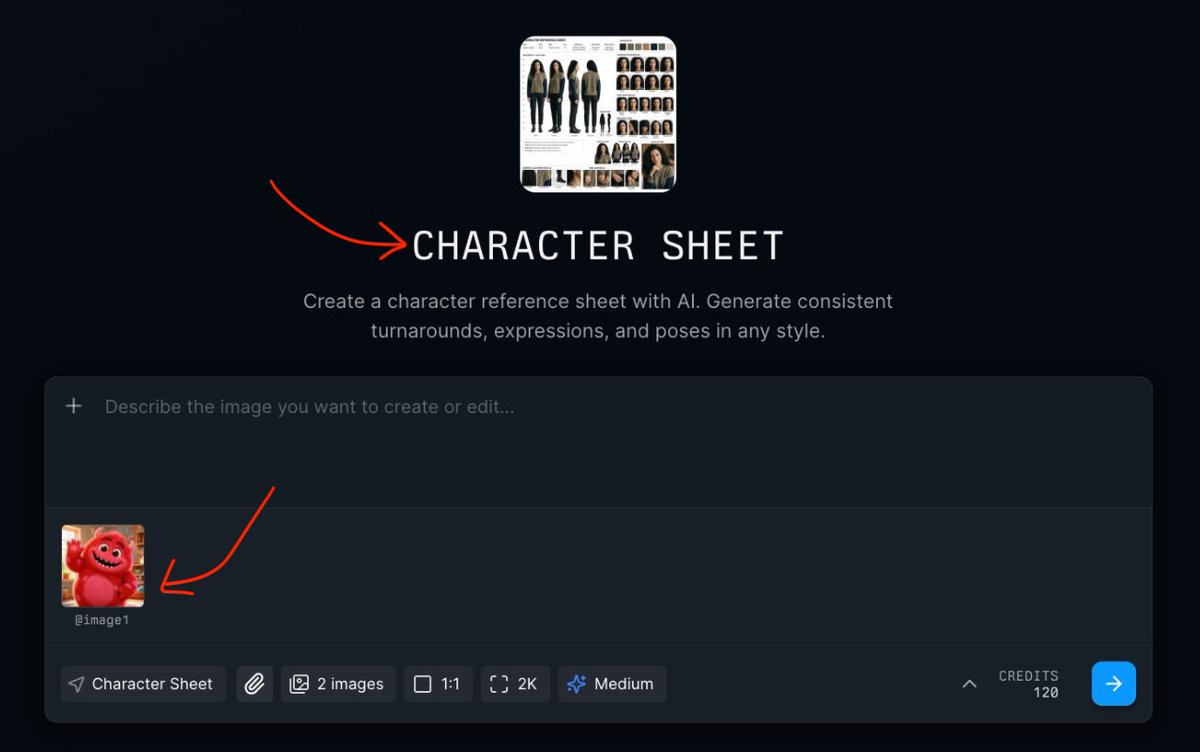
Go to the Character Sheet preset on Mitte. This preset is already set up to make clean reference sheets’ turnarounds, face expressions, poses, hand gestures, and a color palette, all on one page.
You will see the prompt bar at the bottom with Character Sheet already selected.
Now run the Character Sheet preset to turn your base image into a full sheet: front / 3-4 / side / back turnarounds, a grid of face expressions, close-ups, different poses, and a clothes-and-accessories breakdown.
When you’re happy, save it to a folder in your Assets so it’s easy to reuse later.
Step 2: Switch to Seedance 2 and make the video
Now for the fun part. Click the Mitte toolbar menu and select Seedance 2 or Create 3D Cartoons from the menu.
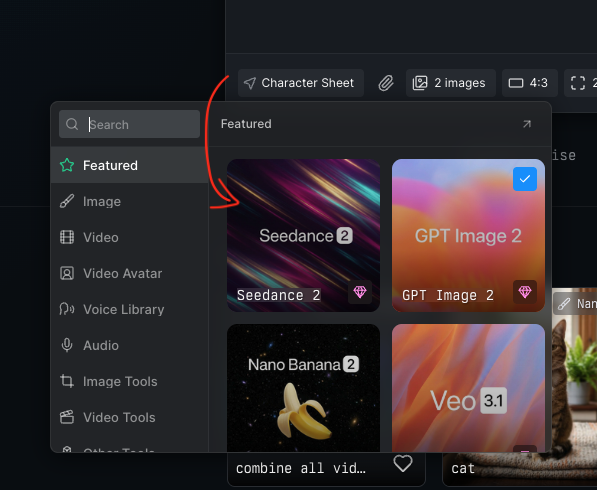
Step 3: Add character sheet to Seedance 2 prompt
Once you switch to Seedance 2 right click on your character sheet image on the sidebar then click “Add to prompt”. This will add your character sheet to your prompt.
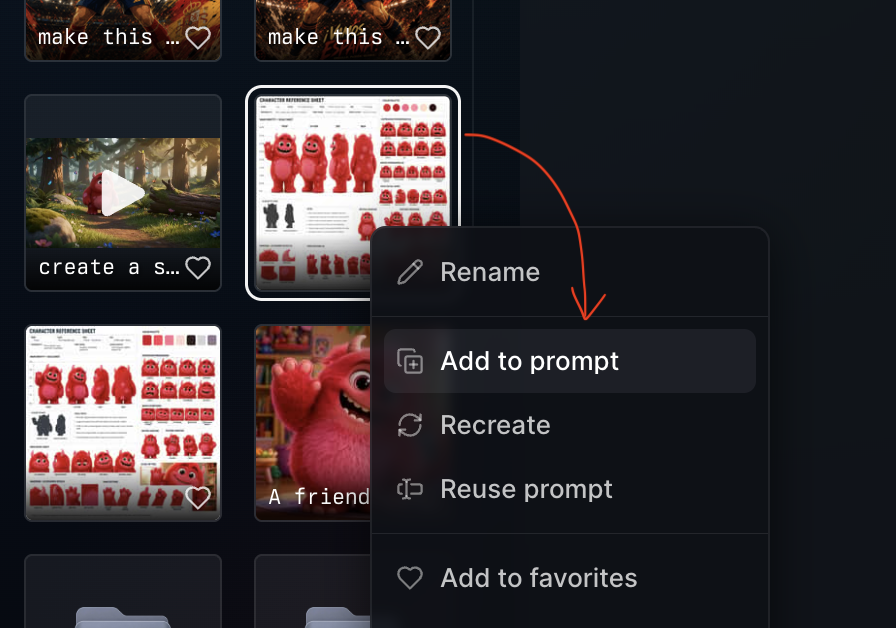
Step 4: Now create the AI video
Give it your reference sheet as the input image. Then describe the motion you want, for example: “create a scene of happy monster following the @image1 character reference precisely, he’s running down in a forest, chasing butter flies in a joy.”
Because Seedance 2 follows your reference, the character stays on-model while it moves.
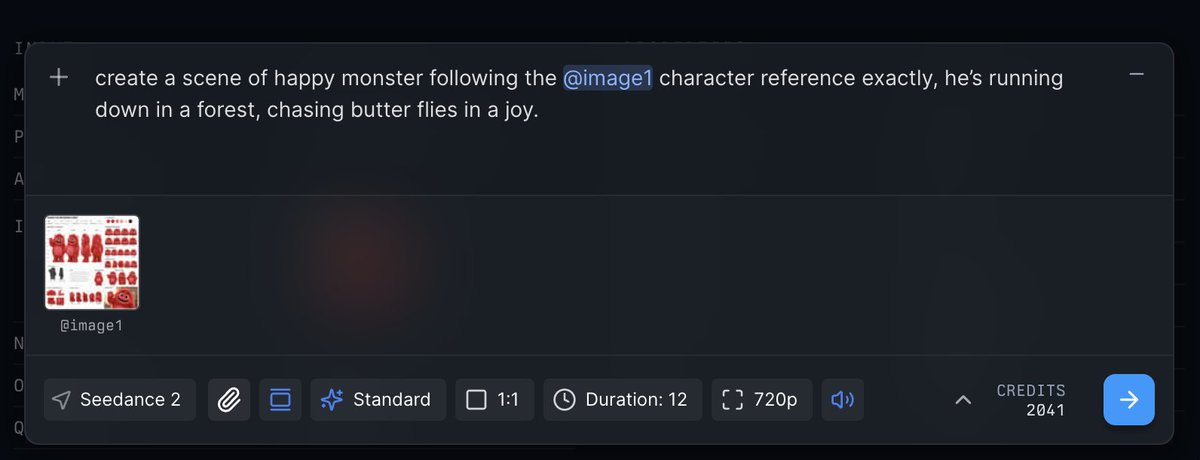
Here the Result
Quick recap
- Make or upload your character image.
- Build it into a full character reference sheet.
- Animate it with Seedance 2.
Get the image right first, and consistency takes care of itself in every clip.
Build your character once, and you have a cast member you can direct again and again = same face, every scene.
Ready to try it? Start with the Character Sheet preset and bring your character to life.